
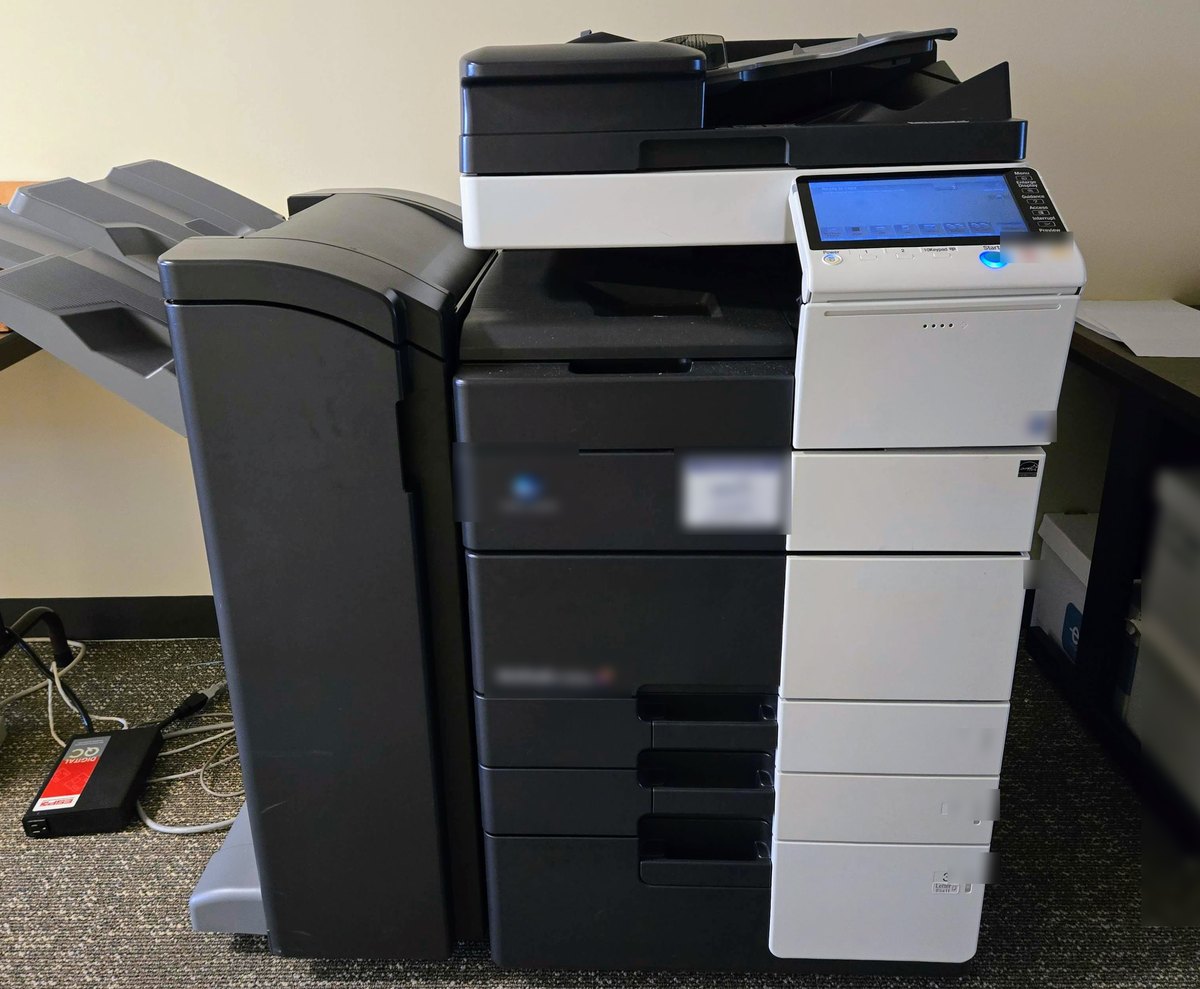

Printers, Copiers and Shared Devices: 7 Steps to Keep Them Secure
The multifunction printer in the corner of the office rarely gets a second thought. Yet it scans contracts, prints payslips, emails documents and sits on the same network as everyone’s computers. The same is true of shared scanners, meeting room screens and the reception PC. When these shared devices are left on factory settings, they can quietly expose sensitive papers and give an easy way into the office network. Here are seven practical steps Bhutanese offices, schools and hotels can take to keep them secure.
1. Know which shared devices you have
Start with a simple list: every printer, copier, scanner, shared screen and common-use computer, where it is, who looks after it, and how it connects (network cable, Wi-Fi or USB). Many offices discover an old printer still connected in a store room, or a device nobody remembers setting up. You cannot protect what you have not listed.
2. Change default passwords and settings
Most printers and copiers have a web admin page that anyone on the network can open. Many still use the factory admin password printed in the manual. Set a strong, unique admin password, store it in your office password manager, and switch off features you do not use, such as unused wireless direct printing, old file-sharing protocols or remote access from outside the office.
3. Keep firmware up to date
Printers run their own software, called firmware, and manufacturers release updates to fix security weaknesses. Check the admin page or the vendor’s support site every few months and apply updates during a quiet period. When a device is too old to receive updates any longer, plan to replace it rather than keeping it on the main network.
4. Place shared devices on the right part of the network
A printer does not need to reach every server or the internet freely. Where your network allows it, put printers and other shared devices on a separate network segment or VLAN, and allow only the connections they actually need, such as printing from staff computers and sending scans to approved email addresses or folders. This limits the damage if one device is ever compromised.
5. Protect confidential printing and scanning
Documents left in the output tray are a common way for personal or financial information to be seen by the wrong person. Where your devices support it, use secure print release, where the job prints only after the user enters a PIN or taps a card at the machine. Limit scan-to-email to company addresses, and remind staff to collect originals from the scanner glass.
6. Look after stored data and old devices
Many copiers keep copies of scanned and printed documents on an internal storage drive. Ask your supplier whether your models store data, enable automatic clearing or encryption if available, and make sure storage is wiped or removed before a device is returned at the end of a lease, sent for repair or disposed of.
7. Set simple rules for shared computers and screens
A reception PC or a meeting room screen is used by many people. Use separate standard user accounts rather than an administrator login, set screens to lock automatically, and avoid saving personal email or browser passwords on these machines. Check them regularly for unknown software and clear out old downloads and files.
How eDruk can help
Since 2004, eDruk Private Limited has worked on networking, structured cabling, software and cybersecurity for organisations in Bhutan. We can help you review your printers and other shared devices, plan network segmentation and set up practical security settings that suit the way your office works.
To discuss a review of your shared devices, contact us:
Email: edruk@edruk.com.bt
Phone: +975 2 332277
Website: https://www.edruk.com.bt
Photo: Baron Maddock, Wikimedia Commons, CC BY 4.0 (cropped, labels blurred).
